Welcome to the Domain Support Knowledge Base
How to navigate the Knowledge Base
Click on the book icon next to the topic you will be working with.
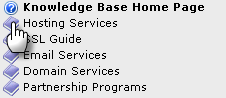
The book icon will open and display subtopics within the main topic.
Click the link of the subtopic you will be working with.
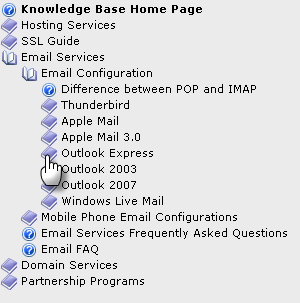
How to use the Knowledge Base Menu Bar

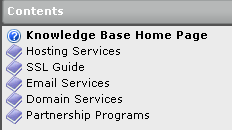
1. Contents
The Contents button will display the topics of the Knowledge Base. Clicking the Contents button from any page will return you to the main topics.
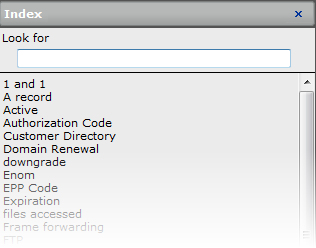
2. Index
The Index button will direct you to the keyword index of terms within the Knowledge Base. Enter a search term into the text box and hit “Enter” on your keyboard.
3. Search
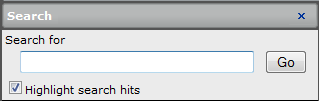
Enter the term or topic you would like to search for and hit the “Go” button. To highlight search hits, check the box located underneath the Search text field.
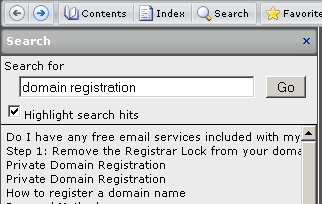
After clicking the “Go” button, your search results will return on the page. Each search result is a link. To view the information for that result, click the link provided in the list.
4. Favorites
To add favorites within the Knowledge Base, select the star
plus icon  to save the page in your
favorites list.
to save the page in your
favorites list.
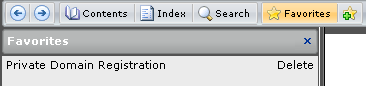
Once your favorite page has been saved, you can simply return to this page at a future date by clicking the Favorites button on the menu bar. Then, click the link of the page you would like to visit.
Click the “Delete” button to remove the page from your Favorites.
5. Print and Email pages
To print and/or email pages from the Knowledge Base, select on one of the corresponding buttons from the menu bar:
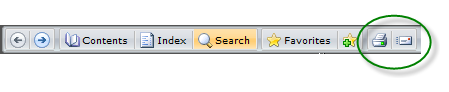

This icon represents the printing function. Please make sure you have a working printer installed on your computer to ensure this works properly.

This icon represents the email function. Clicking this icon will open your default email client.